Researcher: Workflows
The Researcher is your conversational partner in the vault. Learn how to direct its attention and ask better questions.
Focusing Attention with Mentions
By default, the Researcher indexes your vault in the background. However, for specific tasks, you should explicitly tell it what to look at using the @ symbol.
Mentioning a single note
Type
@and start typing the name of a note.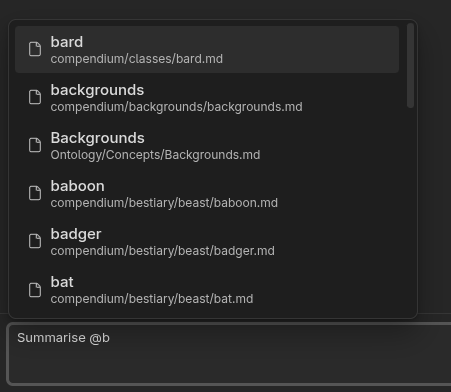
- Use case: "Summarise @Meeting Notes"
- Benefit: Forces the agent to read that specific file in full.
Mentioning a folder
Type @ and select a folder path.
- Use case: "List all open tasks in @Projects/Alpha"
- Benefit: Adds all notes in that folder to the context (up to the token limit).
Multilingual Interactions
The Researcher speaks your language. Examples of how to use this effectively:
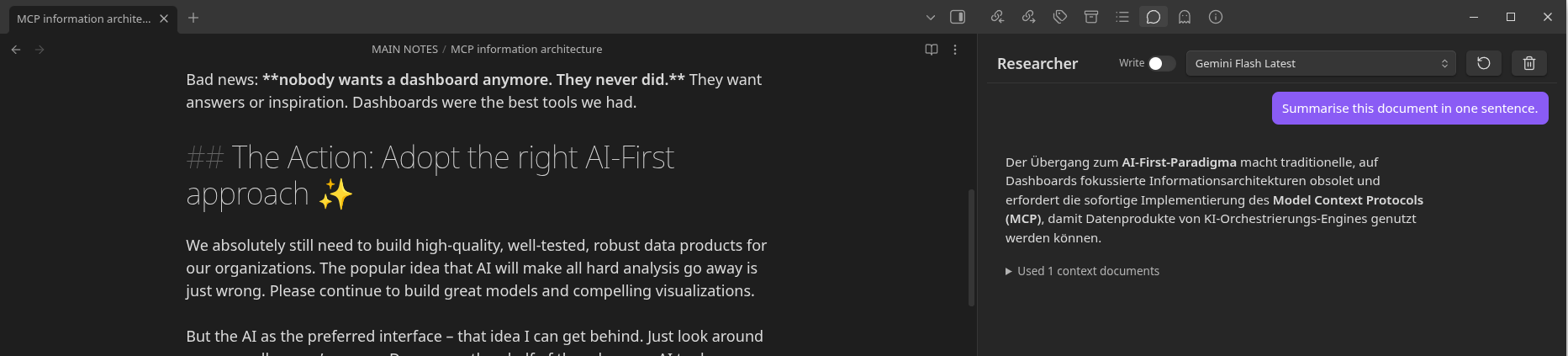
Set your language: Go to settings and choose your preferred language (eg "French"). The agent will now reply in French by default, even if you ask in English.
Cross-lingual search: You can ask questions in your native language about notes written in English. The agent will translate and synthesize the answer for you.
Chat Controls
The Research Chat header includes powerful tools for managing your session on the fly:
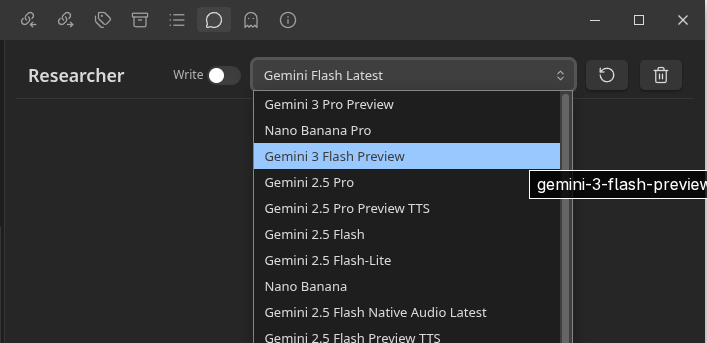
Model Switching: Use the dropdown in the header to temporarily switch models (eg from Flash to Pro) for a single difficult query without changing your global defaults.
Capability Toggles: Click the Write toggle to enable/disable agentic write access for the current session. When enabled, the agent can create or modify notes (it will always ask for your confirmation before applying changes).
Effective Querying
The Researcher uses a hybrid search (Keywords + Meaning + Connections).
| Goal | Less Effective | More Effective |
|---|---|---|
| Recall | "Project Alpha" | "What were the key decisions made in Project Alpha last month?" |
| Synthesis | "Compare notes" | "Compare the conclusions in @Paper A and @Paper B." |
| Discovery | "Similar ideas" | "What other concepts in my vault relate to 'Entropy'?" |
Managing Context
The "Context Window" is the amount of text the AI can read at once.
- Flash Model: Large window (~1M tokens). Good for dumping entire folders.
- Pro Model: Smaller window. Best for precise reasoning on specific files.
TIP
If the agent seems confused, try clearing the chat history to reset the context.