Gardener: Workflows
The Gardener agent helps you keep your vault structured by suggesting topics, links, and tags based on your own ontology.
Hygiene actions
The Gardener performs several types of vault maintenance:
- Topic suggestion: Identifying notes missing relevant topics and proposing links to existing (or new) topic files based on your semantic history.
- Topic merging: Intelligently detecting duplicate or highly similar concepts in your ontology (eg
AI AgentsandAi Agents) using lexical, structural, and semantic matching. When applied, the Gardener safely rewires all links across your vault to point to the canonical topic. - Orphan pruning: Identifying abandoned topic files that have zero incoming links—whether via standard wikilinks or native YAML frontmatter arrays (eg
topics:)—and proposing them for deletion to keep your folder structure clean.
The Workflow: Plan -> Review -> Apply
The Gardener operates on a safe "human-in-the-loop" model. It will never modify your notes without your explicit approval.
- Plan: The agent scans your notes and proposes changes in a temporary "Plan" file.
- Review: You check the suggestions using an interactive UI.
- Apply: You confirm the changes, and the agent executes them natively using Obsidian's safe metadata processors.
Step 1: Running a hygiene check
- Open the Command Palette (
Ctrl/Cmd + P). - Search for Gardener: organize vault concepts.
- Press Enter.
The agent will scan your recent notes (configured in settings) and compare them to your existing folder structure and ontology.
Step 2: Reviewing the plan
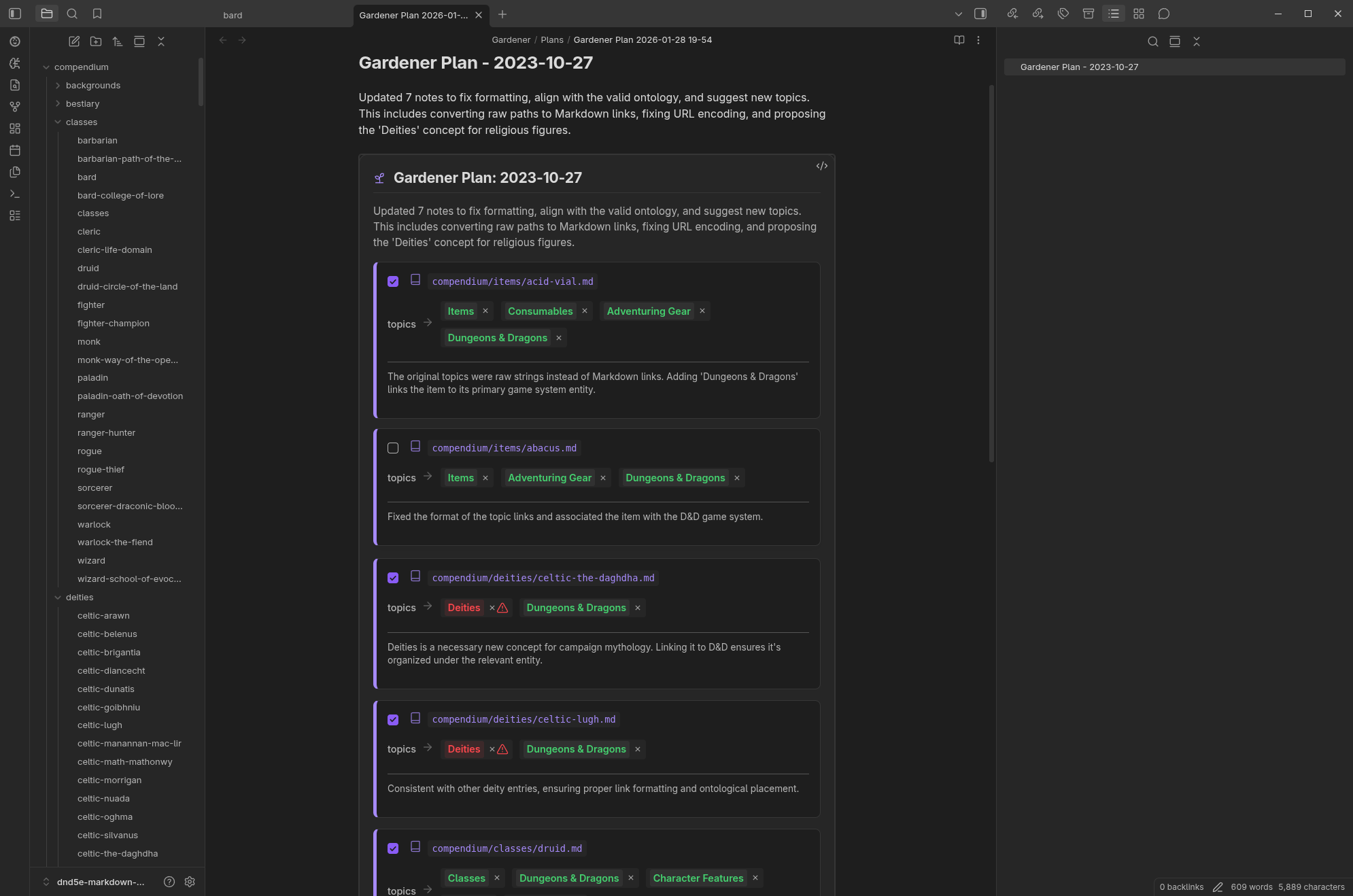
Once the scan is complete, a new note will open (e.g., Gardener/Plans/Plan_2024-03-20). This note uses a special "Live Preview" rendering mode to show you interactive cards.
Understanding the Action Cards
Each card represents a suggestion for a single note:
- Source Note: The file being analysed.
- Suggested Topic: The folder or tag the agent thinks applies.
- Rationale: The "why" behind the suggestion.
Making Decisions
- Accept: Verify the card is checked (default).
- Reject: Uncheck the card if the suggestion is wrong.
- Modify: You can manually move the note yourself if the suggestion gives you a better idea!
Step 3: Applying changes
- Scroll to the bottom of the plan note.
- Click the Apply Changes button.
- The agent will move files and add tags as requested.
- The plan file is automatically archived or deleted based on your retention settings.
Customising behaviour
You can teach the Gardener your specific rules by creating an Instructions.md file in your ontology folder.
Example Instructions.md content:
- Always tag people with #person.
- Never create topics deeper than 3 levels.
- Group all programming languages under /Tech.